Step 01
Get GSPro from the official site
Purchase GSPro and follow the license and download instructions it sends you. Install it on the Windows PC you will use for play. You'll need the OpenAPI license in order to use Trackeon.
Install GSPro on a Windows PC, select OpenAPI, and connect the phone over the same local network.
Your Trackeon account should already be working on the phone.
GSPro Connect open in OpenAPI mode and Trackeon connected on port 921.
Purchase GSPro and follow the license and download instructions it sends you. Install it on the Windows PC you will use for play. You'll need the OpenAPI license in order to use Trackeon.
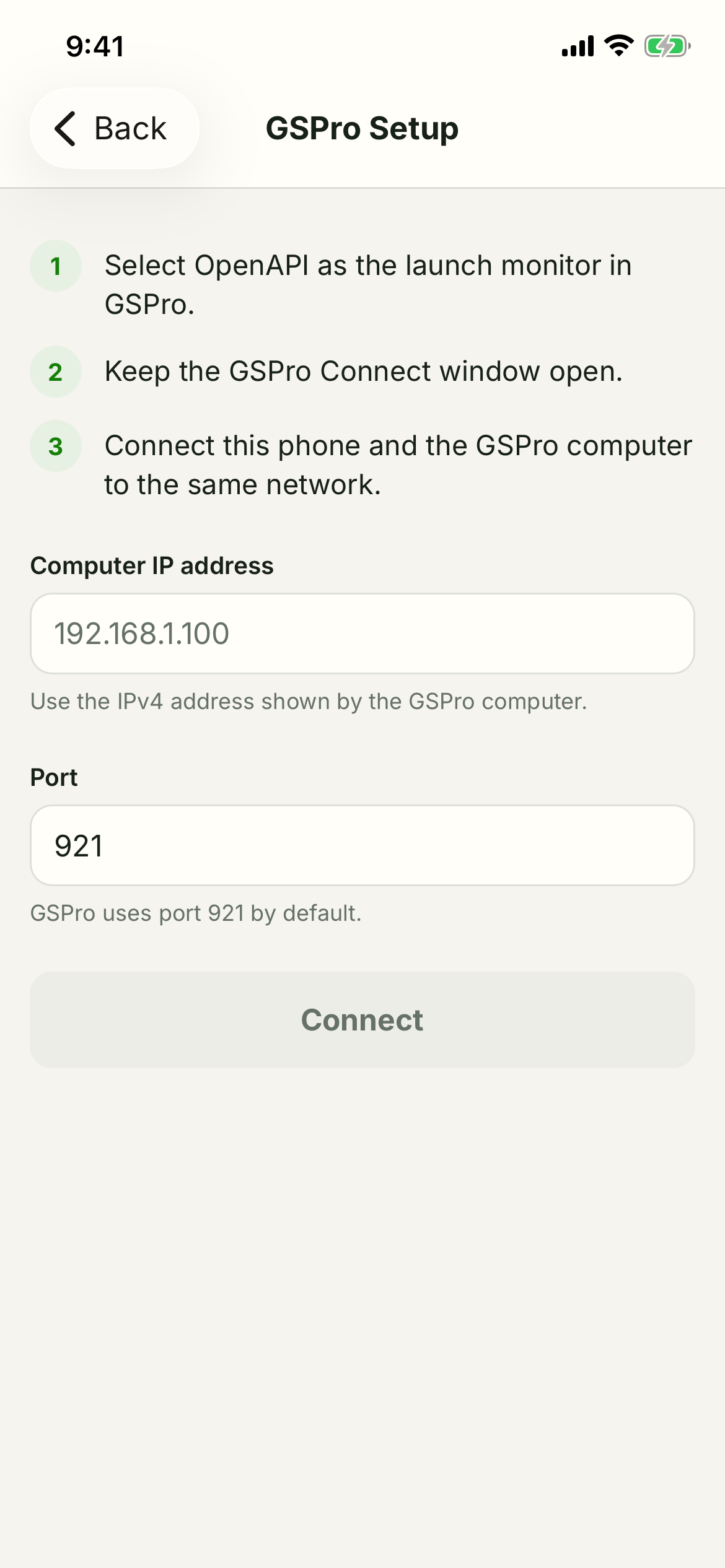
Start GSPro, open its connection window, select OpenAPI as the launch monitor, and leave the GSPro Connect window open. Keep the phone and PC on the same local network.
In Trackeon, choose GSPro from the Play tab. Enter the PC's local IPv4 address, leave the port at 921, and tap Connect.
Once connected, choose the starting club and handedness in GSPro. Trackeon keeps both synchronized while you play. Then follow the typical Trackeon flow to begin playing!
Check GSPro Connect and the network first. Trackeon waits 45 seconds between reconnection attempts after a dropped connection. This has been shown to provide the best chance of reconnecting after a dropped connection.