Step 01
Create an account and install the desktop app
Download OpenGolfSim from its official site. The download flow creates your account. Install the desktop app, sign in, and allow local-network or firewall access when prompted.
Create your OpenGolfSim account, install the desktop app, and link the phone over your local network.
Your Trackeon account should already be working on the phone.
OpenGolfSim running on the computer and Trackeon connected on port 3111.
Download OpenGolfSim from its official site. The download flow creates your account. Install the desktop app, sign in, and allow local-network or firewall access when prompted.
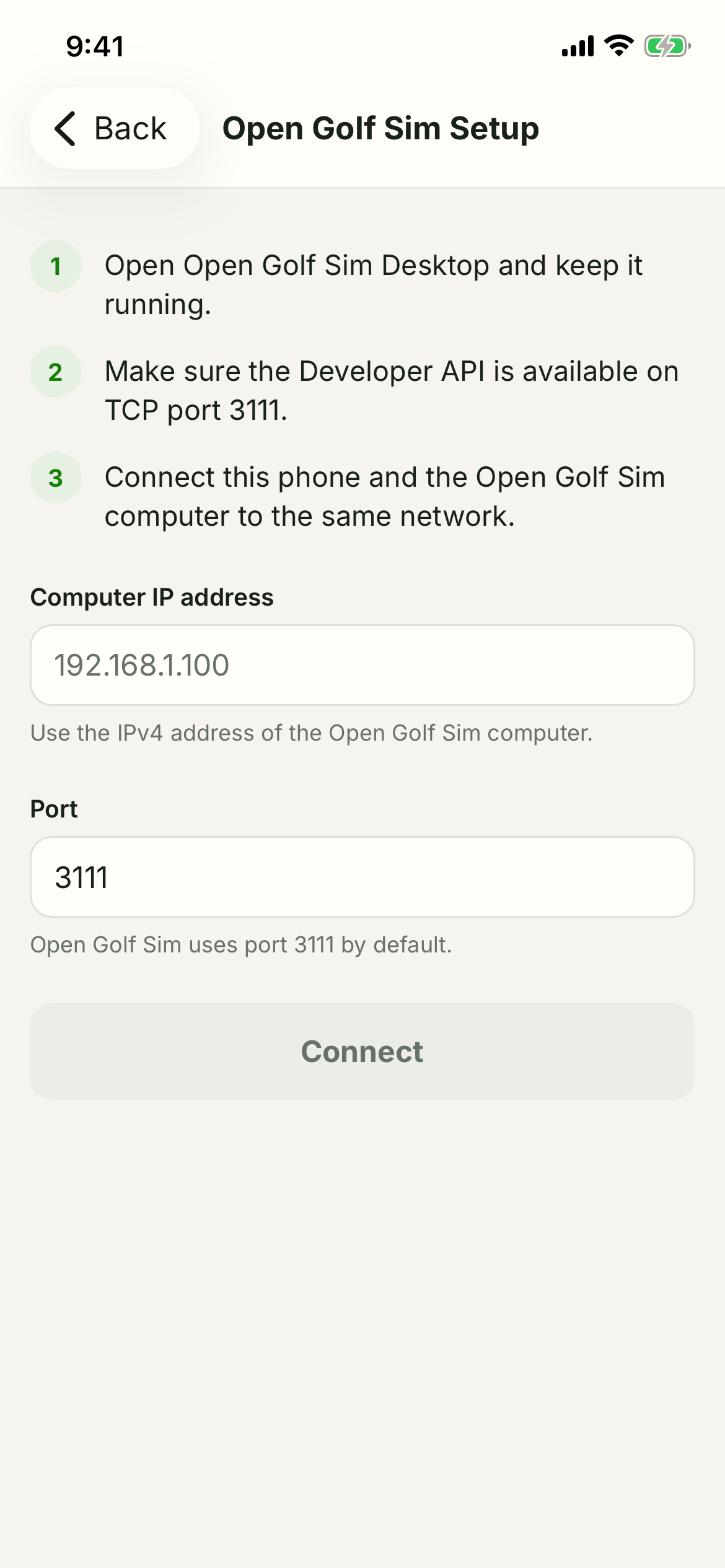
Open OpenGolfSim on your computer before connecting Trackeon. Its API listens on TCP port 3111. Keep the phone and computer on the same local network.
In Trackeon, choose Open Golf Sim from the connection menu. Enter the computer's local IPv4 address, leave the port at 3111, and tap Connect.
After Trackeon shows connected, choose the starting club in OpenGolfSim and set handedness in Trackeon. Trackeon keeps the club selection synchronized while you play.
If it does not connect, confirm the desktop app is running, the IP address is current, both devices are on the same network, and private-network firewall access is allowed.